- A+
Introduction
Installing a driver for a printer can seem daunting, but it doesn't have to be. In this article, we'll walk you through the steps to install the driver for the bizhub205i printer on your computer. The bizhub205i is a monochrome multifunctional printer that is popular in small to medium-sized businesses. Before you begin, ensure that you have the correct driver for your printer model.
Step 1: Download the driver
The first step to installing a printer driver is to download the correct driver from the manufacturer's website. In this case, you can visit the Konica Minolta website and navigate to the downloads section of their website. Next, select your printer model, which is the bizhub205i. Once you have selected the correct model, you will have the option to download the driver for your operating system (e.g., Windows, Mac, Linux). Choose the appropriate driver and download it to your computer.
Step 2: Install the driver
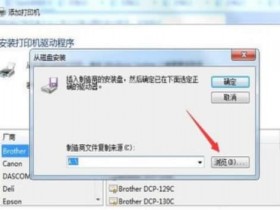
After you have downloaded the driver, you need to install it on your computer. Locate the downloaded driver file and double-click it to begin the installation process. If you're using a Windows computer, you may be prompted with a User Account Control window. If so, click "Yes" to continue with the installation. Follow the on-screen prompts to complete the installation process. When the installation is complete, restart your computer to ensure that the changes take effect.
Step 3: Connect the printer
Once the driver is installed, you need to connect your printer to your computer. Connect the printer to your computer using a USB cable. Turn on the printer and wait for your computer to detect the new device. If your computer does not automatically detect the printer, you may need to add the printer manually. To do this, open the Control Panel and navigate to "Devices and Printers." Click "Add a Printer" and follow the on-screen prompts to add your printer. When finished, you should be able to see the printer in the list of devices under "Devices and Printers."
Step 4: Test the printer
After you have connected the printer and installed the driver, it's time to test the printer to ensure that it's working correctly. Open any document and select "Print." Make sure that the correct printer is selected in the list of printers. If not, select your printer from the list. Click "Print" and wait for the printer to finish. Once the document has been printed, verify that the printer produced the document correctly.
Conclusion
Congratulations! You have successfully installed the driver for the bizhub205i printer on your computer. With these simple steps, you can install a printer driver and connect your printer to your computer, and start printing your important documents. Enjoy the features of your new printer and happy printing!
- 我的微信
- 这是我的微信扫一扫
-

- 我的微信公众号
- 我的微信公众号扫一扫
-