- A+
Introduction
If you own a printer, you probably know that you need a driver to make it work properly. A printer driver is a software program that helps your computer communicate with your printer. It converts the data from your computer into a format that your printer can understand.
Step-by-Step Guide to Receiving Printer Driver Information
Step 1: Determine Your Printer's Make and Model
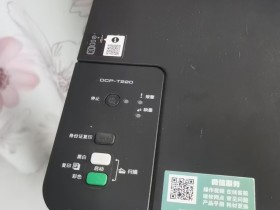
The first step to receiving printer driver information is to determine your printer's make and model. This information can usually be found on the front or back of your printer. If you're having trouble finding it, check your printer's manual or do a quick online search.
Step 2: Visit the Manufacturer's Website
Once you have your printer's make and model, visit the manufacturer's website. Most printer manufacturers have a support section on their website where you can download the latest drivers for your printer. Look for a section labeled "Downloads" or "Support."
Step 3: Select Your Operating System
Before you download any drivers, you need to select your operating system. Make sure you choose the correct version of your operating system - for example, Windows 10 64-bit or macOS Mojave.
Step 4: Download and Install the Driver
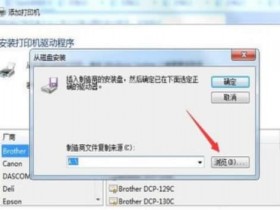
After you've selected your operating system, download and install the driver. Make sure you choose the correct driver for your printer and operating system. Once the driver is downloaded, double-click on the file to begin the installation process. Follow the on-screen instructions to complete the installation.
Step 5: Run a Test Print
After you've installed the driver, run a test print to make sure everything is working properly. Open a document or image on your computer and try to print it. If your printer prints the document or image successfully, then you've successfully installed the driver.
Troubleshooting Common Issues
Issue 1: Driver Won't Install
If you're having trouble installing the driver, make sure you downloaded the correct one for your operating system and printer model. You may also need to check your computer's security settings to make sure they allow the driver to be installed.
Issue 2: Printer is Printing Blank Pages
If your printer is printing blank pages, it may be because the ink or toner cartridges are empty or low. Try replacing the cartridges and printing again. It could also be a problem with the driver - try reinstalling the driver.
Issue 3: Printer is Printing Slowly
If your printer is printing slowly, it could be because of a slow connection or print job. Make sure your printer is connected directly to your computer via USB and that you're not printing large, complex documents or images.
Issue 4: Printer is Not Detected
If your computer is not detecting your printer, try restarting both your computer and printer. Make sure they're both connected to the same network or that your printer is connected directly to your computer via USB. You may also need to reinstall the driver.
Conclusion
Receiving printer driver information is essential for making your printer work properly. Follow these steps to download and install the latest drivers for your printer. If you encounter any issues, try troubleshooting them using the tips outlined above.
- 我的微信
- 这是我的微信扫一扫
-

- 我的微信公众号
- 我的微信公众号扫一扫
-